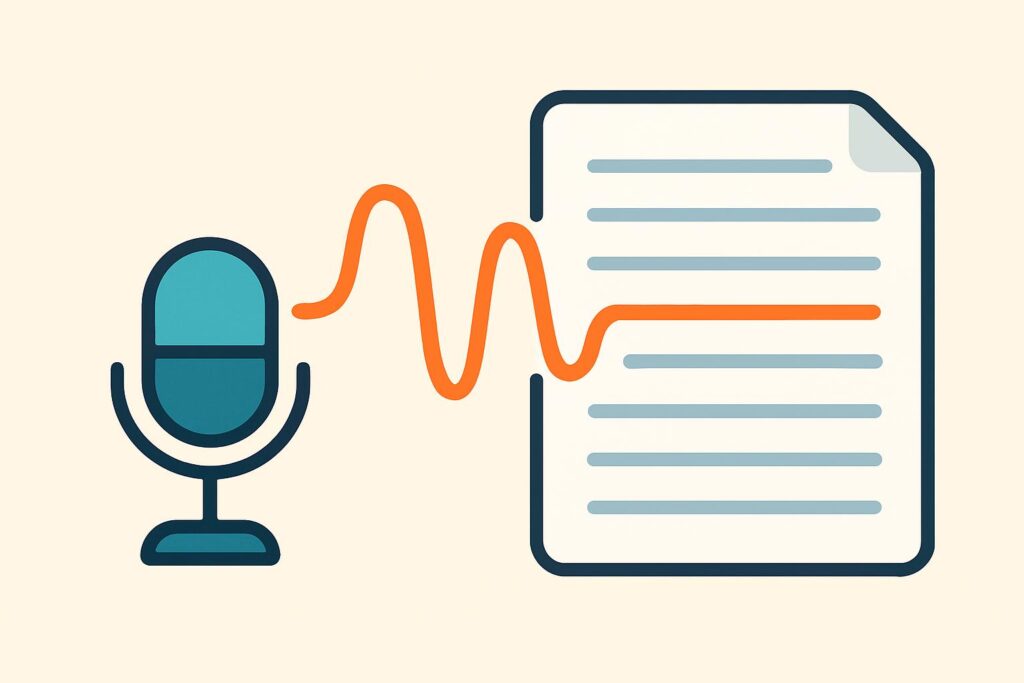
Audio to text AI turns a recording into written text: you upload the recording to a transcription service, to an AI chatbot that handles audio, or to a speech model on your own computer. Transcription is one of the AI use cases that replace manual work, as long as you check the result.
The tools differ mainly in where the recording ends up: with an online service, with a chatbot or only on your own device. Once a recording contains personal data, that choice matters more than ease of use.
How accurate a transcript is depends on the recording. A microphone close to the speaker and people who take turns to speak produce a better transcript.
Names, figures and technical terms deserve the most attention when you check. Checking those points and making a deliberate choice about privacy make a transcript usable for your work.
How do you convert audio to text with AI?
To convert audio to text with AI, you upload the file to a transcription tool, set the language to that of the recording and export the text after checking it. Common upload formats are MP3, WAV, M4A and MP4.
Set the language manually where the tool allows it, so that English technical terms in a recording in another language do not decide which language the tool picks. A transcript in the wrong language is useless.
Export the result in the format you will work with next: DOCX or TXT for a report, SRT for subtitles. Keep the audio file to hand for checking.
Which audio to text AI tools are there?
Three types of tool convert audio to text: online transcription services, AI chatbots that handle audio, and Whisper as a speech model on your own computer. They differ in cost, convenience and where your recording is processed.
Online transcription services
Online transcription services turn an uploaded recording into editable text in your browser. Amberscript is a European service with an office in Amsterdam, offering both automatic transcription and transcription by language experts; according to Amberscript, files are stored and processed in Europe.
TurboScribe has a free plan that lets you transcribe three files a day, each up to 30 minutes long. With any service, read the terms on storage and training before you upload a work recording.
AI chatbots that handle audio
An AI chatbot handles audio when you attach the sound file. According to Google, the Gemini app accepts audio up to 10 minutes in total, and up to 3 hours for Google AI Pro and Ultra subscribers. Since 6 October 2026, you can also upload audio files to ChatGPT to get a transcript or summary.
A chatbot is handy when you want to carry on working with the text straight away, for example to summarise it. The downside is that the recording ends up with a general-purpose AI service, under your account’s privacy settings.
Whisper on your own computer
Whisper is a speech model from OpenAI that is freely available under the MIT licence and runs on your own computer. Whisper is multilingual.
You install Whisper with Python and the command-line tool ffmpeg, so you need some technical skill. The advantage is that the recording never leaves your computer.
How accurate is audio to text AI?
The accuracy of an AI transcript depends on four factors: recording quality, how many speakers talk over each other, accent or dialect, and the number of technical terms and proper names. Every problem you remove at the recording stage saves correction work afterwards.
Accuracy percentages from providers apply to their own test material and say little about your recording. So test a tool on a five-minute clip from your own work before you trust it with a full interview.
How do you make a recording that transcribes well?
To make a recording that transcribes well, put the microphone close to the speaker and record in a quiet room. Also ask people to take turns to speak. Background noise and people talking over each other lower the accuracy.
Say names and technical terms clearly once at the start of the conversation. You will then spot them more quickly when checking, even if the transcript has misspelt them.
How do you check a transcript?
You check a transcript by listening back to the passages with names, figures, dates and negations in the recording. A missed “not” reverses the meaning of a sentence, and that is exactly the kind of error you miss when reading quickly.
Use the timestamps if the tool provides them, so you can jump straight to the right clip. For an important conversation, ask a second person to read the transcript alongside the recording; the four-eyes principle catches errors the author overlooks.
How do you handle privacy when transcribing recordings?
When you transcribe recordings, you handle privacy as you would any processing of personal data. You document the legal basis, tell participants in advance that you are recording, choose a service that offers a data processing agreement and keep the recording no longer than necessary. A voice and a conversation about a client are personal data.
Uploading a recording to a service without a legal basis and agreements with the processor breaches the GDPR. Employees who turn to a personal account for this are an example of shadow AI: use of tools out of sight of the organisation.
For sensitive conversations, transcribing locally with Whisper is the lowest-risk route, because the recording then stays on your own device.
What is the difference between transcribing and dictating?
Transcribing turns an existing recording into text; dictating turns your speech into text as you speak. In ChatGPT, you dictate with the microphone button in the input field and edit the text before you send it. With ChatGPT voice mode, by contrast, you hold a spoken conversation, with no text file as the result.
Can you convert audio to text for free?
Yes, you can convert audio to text for free with Whisper on your own computer and with the free allowance of online services such as TurboScribe. Free allowances are limited in the number of files or minutes, and the terms on storing your recording vary by service.
Can you turn a recorded meeting into minutes?
Yes, you can turn a recorded meeting into minutes by transcribing it and then having the decisions and action points summarised. Automated minute-taking also requires you to notify all participants in advance.
Frequently asked questions about audio to text AI
You may already have software that converts audio to text, although what it can do varies by tool.
Can you convert audio to text in Word?
Yes, in Word for the web and in Word for Microsoft 365 on Windows, you can convert audio to text with the Transcribe feature. You upload a WAV, MP4, M4A or MP3 file and choose the recording’s language from the supported languages. According to Microsoft, a Microsoft 365 subscription lets you transcribe up to 300 minutes of uploaded audio a month.
Does a transcription tool recognise who is speaking?
Some transcription tools recognise who is speaking and add a speaker label to each segment. According to Microsoft, Word splits a transcript by speaker, with names such as Speaker 1 and Speaker 2 that you can rename yourself. OpenAI does not list speaker recognition as a Whisper feature, so there you add the names yourself or use additional software.
Can AI transcribe and translate a recording at the same time?
You can transcribe and translate a recording in one go with OpenAI’s Whisper, but only into English. Whisper turns a recording in, say, Dutch or German into English text, not the other way round. According to OpenAI, the turbo model does not translate and returns the original language, while the medium and large models do translate. If you need text in another language from an English recording, transcribe it first and then translate the text.
How do you learn to use AI tools without leaking confidential recordings?
You learn to use AI tools without leaking confidential recordings in LearnLLM’s AI Literacy Course. A separate module covers privacy, confidentiality and high risk in practice. Another module shows why your account type determines what happens to your input, and you finish with a personalised certificate.