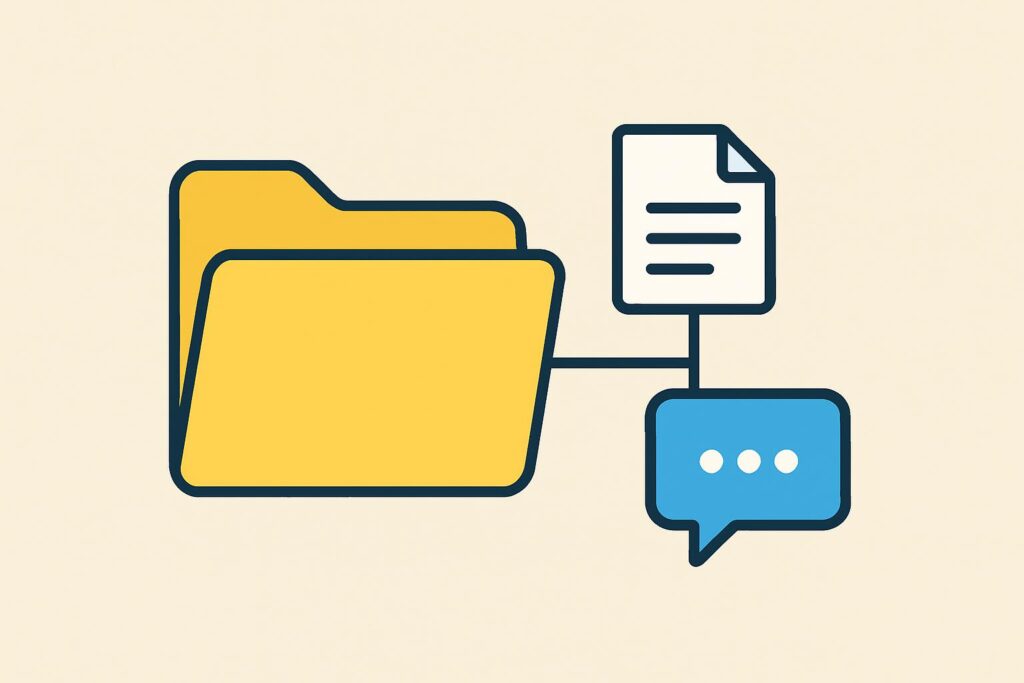
ChatGPT projects are separate workspaces within ChatGPT in which you keep the files, instructions and conversations about one topic together. You set one up by creating a new project, adding the relevant files and giving it fixed instructions, so that ChatGPT keeps using that context in every chat within the project.
Since OpenAI closed the creation of new custom GPTs on personal accounts, a project has become the place where many people now keep their established way of working. This article explains how to create a ChatGPT project, what the limits are per plan, and what a project does and does not take over from a custom GPT.
How to create a ChatGPT project in five steps
You create a ChatGPT project by clicking Projects in the left-hand menu and starting a new workspace. Give the project a name that covers the topic, add files and instructions, and every chat you start within that workspace automatically uses the same context.
- Open the left-hand menu and click Projects, available in the web version, the desktop app and the mobile app.
- Click New project and give it a recognisable name, for example after a client, a topic or an ongoing assignment.
- Add sources: PDFs, spreadsheets, documents or images, or paste text directly into the project.
- Set project instructions through the three dots at the top right, so that within this project ChatGPT follows the role, tone or approach you expect.
- Start a chat within the project. That chat automatically has access to the added files and instructions.
Over the past year, projects have been built into more and more places. Since 18 June 2026, pinned chats and projects have shared one section in the sidebar; since 14 July 2026, you can also find projects through search; and since 16 July 2026, they have worked in the desktop app. Since 7 August 2026, voice mode has also had access to your project chats, sources and instructions.
Within a project, ChatGPT’s memory works differently from a standalone chat, and you can now set it yourself per project.
The difference between a ChatGPT project, a custom GPT and a Plugin
A ChatGPT project is a workspace for your own chats, a custom GPT is a reusable assistant you can share separately, and a Plugin is the route OpenAI points to now that custom GPTs are being phased out. The distinction between the three determines which one suits your work.
You can no longer create and publish new custom GPTs on personal ChatGPT accounts, which covers Free, Go, Plus and Pro. In a Business, Enterprise or Edu workspace it is still possible, provided the settings and permissions allow it. On all plans, custom GPTs disappear on 11 December 2026; Enterprise workspaces with an approved extension follow on 11 February 2027. Existing GPTs keep working until then.
OpenAI advises moving your workflows to Plugins, which bring reusable instructions and connected apps together, and offers the Migrate to plugin option for this: your GPT’s instructions become a skill in the new Plugin and the knowledge files become reference files. Note that OpenAI names Plugins as the route, not Projects. If in the meantime you need something that works today on a personal account, you end up with a project, but that is my assessment and not OpenAI’s advice.
Where a project does replace a custom GPT is the fixed context: instructions and sources that come with every conversation without you having to supply them again. Where it falls short is sharing as a tool. A custom GPT was an assistant others could open and use; a shared project gives people access to the same workspace, including the conversations in it. Those two forms of collaboration are not interchangeable.
From a custom GPT to a ChatGPT project
Converting a custom GPT into a ChatGPT project takes about fifteen minutes and in most cases gives you the same way of working. To do it, you split the GPT into two parts: the behaviour, meaning what it must always do, and the sources, meaning what it may draw on.
The behaviour moves to the project instructions. Copy your GPT’s full instructions field and paste it into the project settings. Then go through it once and remove anything aimed specifically at the builder, such as references to conversation starters. What remains is the core: role, tasks, approach, output format and limits.
The sources move to the project files. Download the knowledge files from your GPT and upload them to the project. Watch the limits below: a GPT could have twenty files and a project on Plus twenty-five, but on Free only five.
One limitation to know about in advance: you cannot move conversations you started from a custom GPT to a project. If you want to keep a valuable conversation, copy the content you need into a text file and add that as a project source.
What you do not take with you are the custom actions your GPT used to call external APIs. A project does not have that capability, and that is exactly the part Plugins are meant for. If you have a GPT that relies on an external integration, choose a Plugin rather than a project, and expect to set up that integration again, because custom actions do not carry over through Migrate to plugin either.
Adding files to your ChatGPT project
You can add files to your ChatGPT project in three ways: upload them separately from the project workspace, paste text directly into the project, or add a file during an ongoing chat within the project. Supported formats include PDF, spreadsheets, text documents and images.
Per upload session, you can add a maximum of ten files at once, whatever your plan. The total per project does differ per plan, as shown in the table further down.
If you upload a file with the same name as an existing project file, you can choose to add it anyway or skip that one file. When you upload several files at once, ChatGPT only skips the conflicting file; the rest of the upload goes ahead as normal.
Once a file has been added, you can open it from the sources list to view, download or delete it. In a shared project, deleting removes the file for everyone in the project, although it can be added again later.
A practical tip you will not find anywhere in the interface: text files without complex formatting work better than PDFs with columns, tables spanning several pages or lots of images. A clean textual structure is easier for a model to process than a visual design, and with a limit of five to forty files it is a waste to use one on a file that only gets half read.
Setting project instructions in your ChatGPT project
You set project instructions in your ChatGPT project through the three dots at the top right of the project workspace, under project settings. According to OpenAI’s documentation, these instructions apply only within that project and override your global custom instructions as soon as you chat in that workspace.
The difference from your normal instructions lies in their scope. A global instruction applies everywhere, in every conversation. A project instruction applies only within that project and lets you set a different role or tone per topic, without having to phrase it again each time. Think of “respond briefly and in bullet points” for a project management project, compared with a more extensive, analytical tone for a research project.
Write the instructions as a working agreement, not as a wish. “Try to write in a businesslike way” is a wish; “write in plain business English, avoid jargon, keep paragraphs under five lines” is an agreement you can test the output against. Also state what the project does not do, because that boundary stops a conversation drifting into work that belongs elsewhere.
With a long instructions field full of conditions, in practice ChatGPT follows some of the instructions and leaves others aside, without saying so. For complex workflows, it therefore pays to split the task across several conversations within the same project, rather than cramming everything into one instructions field.
Setting memory per project
Since 14 August 2026, you can set the memory of a ChatGPT project per project in the project settings, including for an existing project you do not share with others. You choose between the default setting, in which the project follows your account’s memory, and a setting in which the project uses only its own context. A shared project always uses only its own context, and ChatGPT Work does not work in a project with that setting.
That choice matters more than it seems. On the default setting, ChatGPT can bring in information from other conversations, which is handy for personal working preferences but disruptive as soon as a project has its own frame of reference. A project for one client that brings in context from another client produces output you do not want to send.
For work with client files, confidential documents or strictly defined frameworks, the project-only setting is the safer choice. For a personal research project in which you do want ChatGPT to carry over your way of working, the default setting is more convenient.
Moving existing chats to a ChatGPT project
You move existing chats to a ChatGPT project through the menu next to a conversation: choose Move to project and select the right workspace. Another way is to drag the chat from your conversation list into the project.
Moving is mainly useful if you decide only afterwards that a standalone conversation actually belongs to an ongoing project. The conversation and the answers generated earlier stay intact; only the location changes, after which the conversation also gets access to the other files and instructions in that project.
The exception was mentioned above and is especially relevant now: a chat you started from a custom GPT cannot be moved. If you want to rescue your work from a GPT, copy the content into a file and add it as a source.
Which plans give access to ChatGPT projects
All plans give access to ChatGPT projects, including the free version. Since 22 October 2025, everyone can also share a project with others, which was previously reserved for Business, Enterprise and Edu accounts.
What does differ per plan is the scale: the number of files per project and the number of people you can add to a shared project.
| Plan | Files per project | Members of a shared project |
|---|---|---|
| Free | 5 | 5 |
| Go and Plus | 25 | 10 |
| Pro | 40 | 100 |
| Business, Enterprise and Edu | 40 | 100 |
A shared project gives teammates access to the same chats, files and instructions, and lets everyone carry on where someone else left off. The project owner decides whether sharing is limited to invitees or open to anyone with the link. For work with confidential documents, the first option is the only defensible choice, because an open link can be forwarded.
Using ChatGPT projects in your daily work
ChatGPT projects work best in your daily work once you stop treating them as a one-off solution and use them as a fixed place for recurring work: an ongoing client assignment, research that takes weeks, or a content process you repeat every month.
A rule of thumb: if a task is one-off and self-contained, an ordinary chat is enough. If you work on the same topic for longer, with the same sources and the same tone, a project saves you repeating the context in every new chat.
Thinking in repeatable workflows rather than one-off prompts pays off more in the long run than starting from scratch each time. A project is one of the simplest building blocks for this within ChatGPT: the files and instructions are fixed, and all you have to do is ask the question of the moment.
There is one thing a project does not take off your hands, and that is checking the output. Fixed instructions make the result more predictable, not more correct. A project that holds on to a wrong pattern repeats that error in every conversation, and precisely because the output feels more consistent, such an error is easier to miss. So build a checking step into your workflow and also record it in the project instructions, for example by having the model flag the points where its answer may be unreliable.
If you want to go beyond a workspace and have ChatGPT carry out tasks on its own, you end up with ChatGPT Work, the agent for longer tasks that OpenAI launched on 9 July 2026 for the paid plans and that has replaced agent mode in ChatGPT. Teams that do not want every employee to work this out alone record the way of working and the checkpoints in an internal AI policy and give everyone the same foundation with the AI Literacy Course.
Frequently asked questions about ChatGPT projects
The questions below about ChatGPT projects cover the limits, the difference from a custom GPT, sharing with others and the switch now that custom GPTs are disappearing.
Can you use a ChatGPT project for free?
You can use a ChatGPT project for free, because the feature is included in all plans, including the free version. On Free, you can upload a maximum of five files per project and invite a maximum of five people to a shared project. On Go and Plus, that becomes twenty-five files and ten members.
How many files can I add to a ChatGPT project?
The number of files per ChatGPT project ranges from five on Free to twenty-five on Go and Plus, and forty on Pro, Business, Enterprise and Edu. Per upload session, you can add a maximum of ten files at once, whatever your plan. Many small, focused files work better than a few large ones in which the model has to search for itself.
Can a ChatGPT project replace a custom GPT?
A ChatGPT project replaces a custom GPT for your own work, but not as a tool you offer to others. You carry over the fixed instructions and sources; what you do not carry over is sharing as a standalone assistant and custom actions that call external APIs. OpenAI itself points to Plugins as the route, so for a GPT that relies on an external integration, a Plugin is the way to go, and you set up the integration again.
Do my normal instructions also apply within a project?
Your normal instructions apply within a project only to the extent that the project instructions do not override them. OpenAI writes that project instructions work only within that project and override the global custom instructions there. So put only what differs in the project, and leave what applies everywhere in your global instructions.
Can I move a chat from a custom GPT to a project?
You cannot move a chat you started from a custom GPT to a project. You can move ordinary chats, through the menu next to the conversation or by dragging the chat into the project. If you still want to keep a GPT conversation, copy the content into a text file and add it as a project source.
Where can I learn how to build this into a fixed way of working?
You build a fixed way of working by recording the instructions, the sources and the checking step instead of starting from scratch each time. In the LearnLLM ChatGPT Course, prompting techniques, project setup and workflow design come together, with the checkpoints you need to use AI output responsibly in your work.